Call to schedule your free pickup today.

We accept both digital and manual impressions

At Odontex Dental Lab, we support a full range of impression workflows to make your case submission simple and reliable. Whether you prefer sending traditional impressions or using digital intraoral scanners, our team is ready to assist.

We understand that every clinic has different needs and workflows, so we provide flexible options to ensure your cases arrive accurately and efficiently.

Below you will find details on how to send digital scans to our lab, along with downloadable prescription forms for manual submissions.

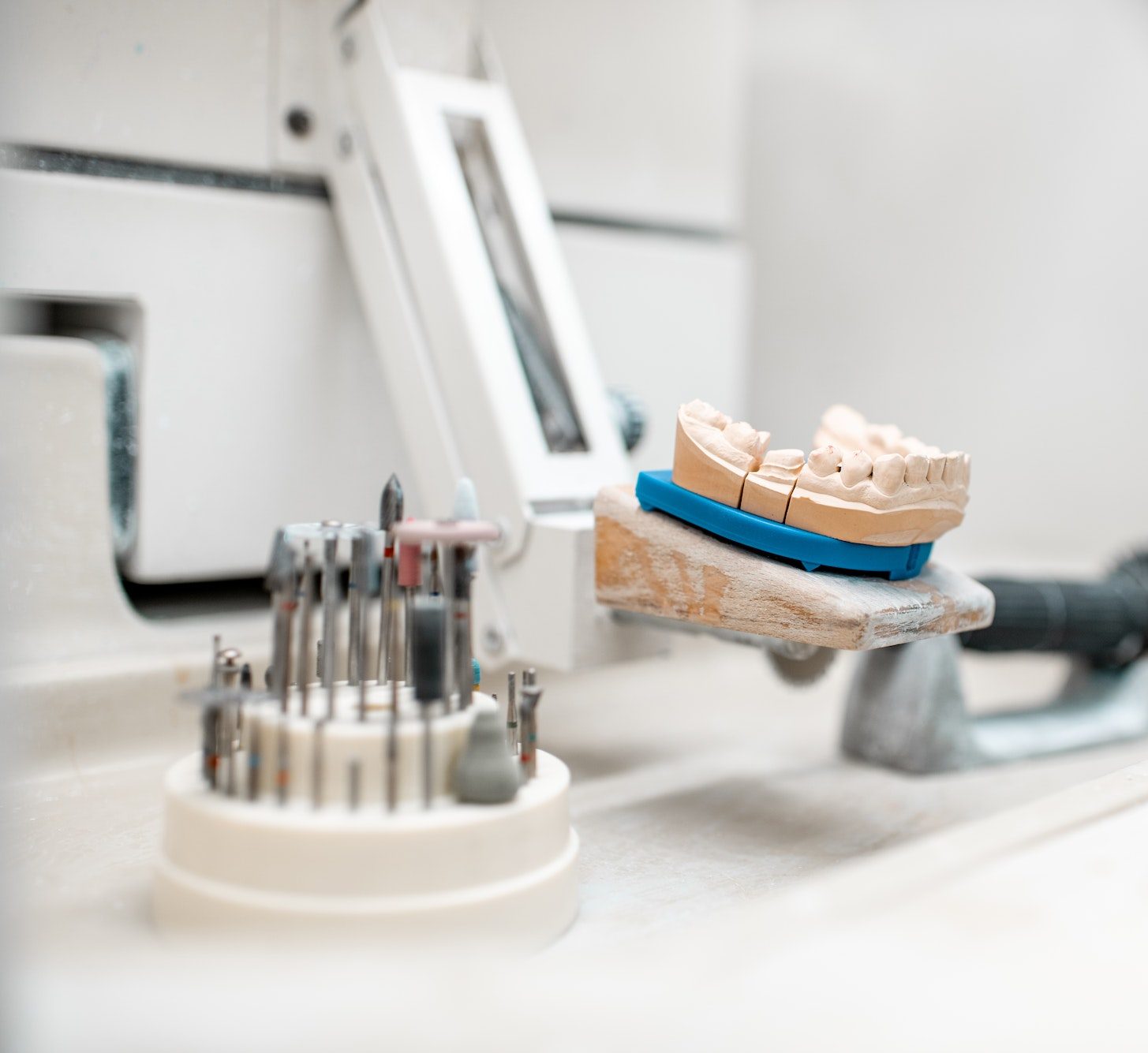
Dental technician working place at the laboratory
Prescription Forms

Digital Connection Guides

How to send your cases to our lab?

1. Log in to your Medit Link account.

2. From the left-hand menu, select Partners.

3. In the search bar, enter our lab’s name “Odontex” and search.

4. Find our lab in the results and click Request Partnership to send the request.

5. Once we accept your partnership request, you can open the Medit Link program to place orders and send your completed cases directly to us.

For detailed instructions,  please click here to view the Medit Link Guide

  1. Log in to your Shining 3D account.
  2. Click the “Connections” tab on the right-hand panel.
  3. Click the “+ New” button in the window.
  4. In the “Add Connections” window, enter our lab name Odontex.
  5. Click the tick button to submit the request.
  6. An approval request will be sent automatically. The status will show “Acceptance awaited” until we approve it, then change to “Confirmed.”
  7. Once confirmed, you can begin sending your cases to our lab.

For detailed instructions, please click here to view the Shining 3D Scanner Guide

  1. Go to myitero.com and log in using your username and password.
  2. On the home screen, click Settings, then select Practice Settings.
  3. In the Settings page, click My Labs.
  4. All labs currently connected with your clinic will be listed here.
  5. To add a new lab, click the Add Lab button.
  6. In the search field, enter our lab’s name “Odontex”, then click Search.
  7. Locate Odontex and click Connect.
  8. A confirmation message will appear — click Yes to confirm the connection.
  9. Our lab will receive an email notification about your connection request.
  10. The new lab will appear with a Pending status until we approve it, then it will change to Connected.
  11. After the connection is confirmed, Odontex will appear in your Send To list when completing your Rx.

For detailed instructions,Please click here to view the iTero Connect Guide

  1. Go to Your Practice Settings
    From your DS Core dashboard, click on your profile icon in the top-right corner.
    Select Practice from the dropdown menu.
  2. Open the Preferred Labs Tab
    In the Practice section, click on the Preferred Labs tab.
    Click the + Add preferred lab button on the right-hand side.
  3. Search for a Lab
    In the Add preferred lab window, use the search bar to type the lab’s name — “Odontex.”
    The system will show a list of matching labs.
    Select Odontex and add it to your preferred labs list.

For detailed instructions, Please click here to view the DS Core Connect Guide

  1. Login to your 3Shape Communicate account.
    If you don’t have one, click “Create 3Shape Account” and register for one.
  2. Open 3Shape Unite.
    Go to More → Store.
  3. Add a New Lab Connection.
    Navigate to Lab connections and click the “Add connection” button.
    Type in the lab details — you can search by name, address, email, or phone number.
    Search for Odontex Dental Lab and click Connect.
  4. Approve the Connection.
    Once we approve your request, the status will change from “Waiting for approval” to “Active.”
  5. Set Up on Your TRIOS® Scanner.
    Go to your TRIOS® scanner, select Configure → Lab Connections → Communicate for External Connection.
    Click Refresh and ensure Odontex Dental Lab appears in your Communicate list.

For detailed instructions, Please click here to view the 3 Shape Connect Guide

scientist-working-with-scientific-equipment-in-lab-2021-09-14-01-30-44-utc.jpg
A.jpg

Book a Pickup

At Odontex, we accept manual impressions across our full product range and provide reliable courier arrangements to ensure your cases are delivered to our laboratory safely and efficiently.

To schedule a pickup, please contact our team directly on 0416 668 884. Our staff will guide you through the process, assist with any preparation requirements, and coordinate the appropriate courier service for your location.

Whether you are sending Crown & Bridge, Implants, or Removable cases, we are committed to providing a seamless and professional collection experience. If you have any questions or require additional support before your pickup, our team is ready to help.